Templates
Customize the notifications sent to your users for incidents, maintenance, and announcements.
Overview
Incipulse allows you to create and manage templates for various notification channels including Email, Slack, SMS, and Microsoft Teams. You can also define Group Templates that are used when sending notifications to specific Alert Action Groups.
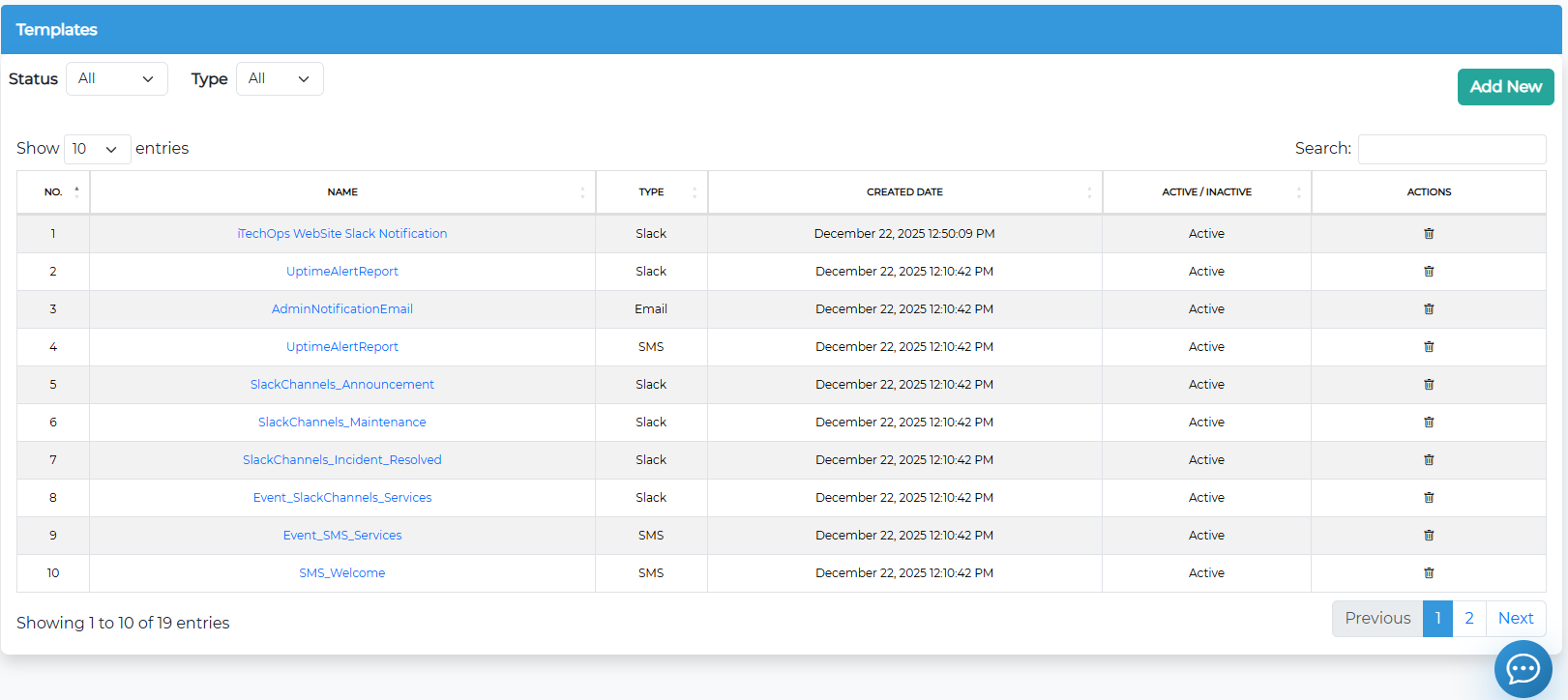
Managing Templates
Navigate to Design > Templates (or Settings > Templates depending on your menu) to view the list of existing templates.
- Filter: You can filter the list by Status (Active/Inactive) or Type (Email, Slack, SMS, Teams).
- Search: Use the search bar to find templates by name.
Creating a New Template
- Click the Add New button.
- Template Configuration:
- Name: Enter a unique name for the template.
- Status: Set to Active to make it available for use.
- Type: Select the notification channel:
- Email: Uses a Rich Text Editor. Includes a Subject line.
- Slack: Uses a text area for the message payload.
- SMS: Uses a plain text area (max 1000 characters).
- Teams: Uses a JSON editor for Adaptive Cards.
- Group Template: Check this box if this template is intended for use with Alert Action Groups.
Editing Content
The editor changes based on the selected Type:
Email
Use the visual editor to format text, add links, and insert images.
- Subject: Don't forget to set a clear subject line.
- Variables: Click the Info (i) icon to see available variables like
{IncidentTitle},{Status}, etc.
Slack & SMS
Enter the plain text message.
- SMS Limit: Keep your message within 1000 characters. The editor will show a character count and estimated message parts.
Microsoft Teams
Enter the JSON structure for the Teams card.
- The editor supports JSON syntax highlighting.
- Use the Format JSON option if available to clean up your code.
Deleting a Template
- Locate the template in the list.
- Click the Delete (trash) icon.
- Confirm the action in the pop-up dialog.